A remote for your show
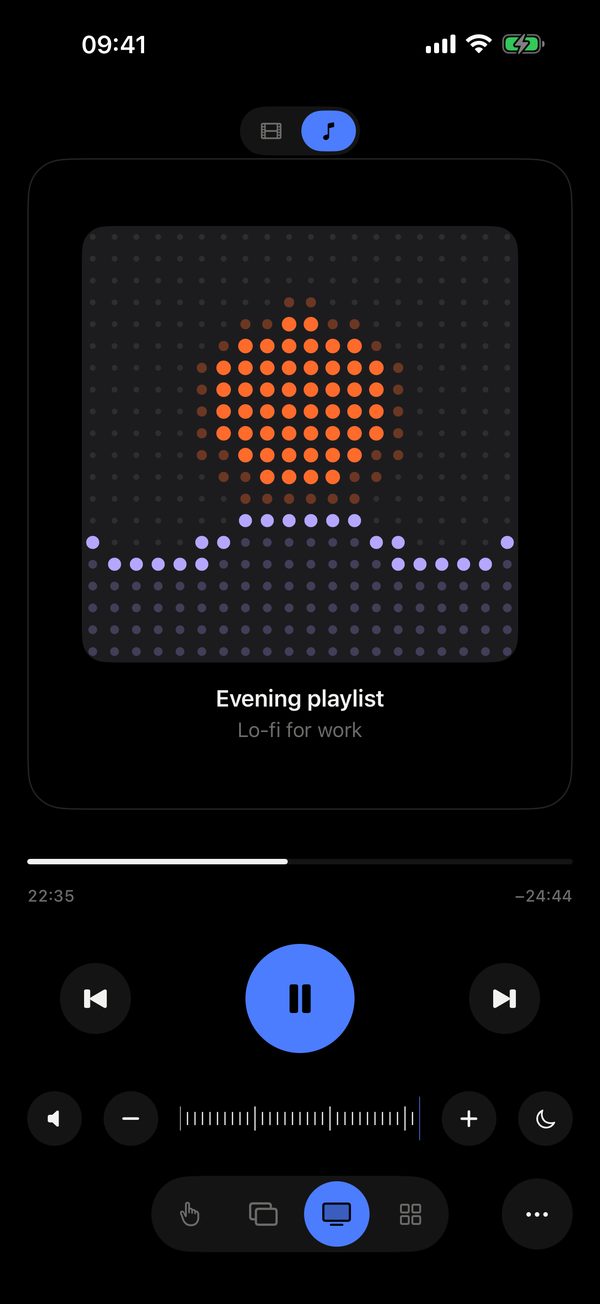
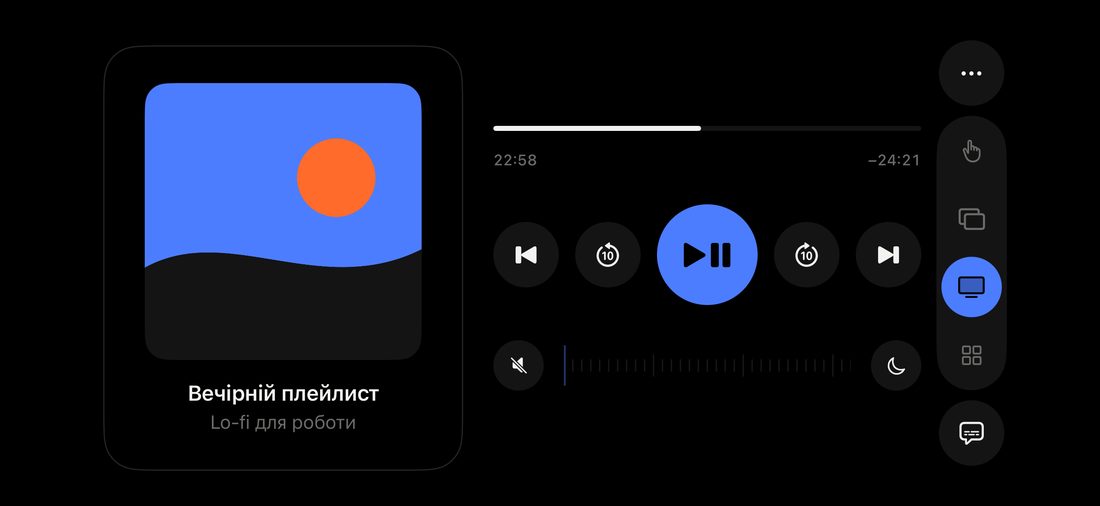
In Cinema mode your iPhone is a remote for whatever plays on your Mac. At the top, a Film or Music switch. One big gesture surface: tap to pause, swipe to skip in a film or change tracks in music, drag up or down for volume. Artwork, title and progress come from any player; with Pro you can scrub the progress bar.
Updated
Gestures
Sleep timer Pro
The moon next to the volume: 15, 30, 45 minutes, one, one and a half or two hours. While it runs, the button shows the time left. At the end the Mac pauses and goes to sleep.
Mac volume
The volume ruler shows the Mac’s real level and moves by itself when you change the volume with the Mac’s keys or Control Center.
Questions
Which apps does it work with?
Pause, skip and volume work everywhere: YouTube, Netflix and any site in a browser, Music, Spotify, QuickTime, IINA, VLC. Artwork, title and progress come from the system’s Now Playing — from any player, even YouTube in a browser.
How is Film different from Music?
The switch at the top of Cinema mode. In Film a swipe skips 10 seconds, in Music it changes tracks. Tap, volume and artwork work the same.
What does the sleep timer do?
After the time you choose, the Mac pauses playback and goes to sleep. The timer lives on the Mac, so it works even if your phone is already locked. It is a Pro feature.
Why dim the screen?
So a bright phone does not distract you in the dark. Turn it off in Settings → Cinema → Dim iPhone screen.