Connected in a minute
You need an iPhone or iPad on iOS 18 or later and any Mac on macOS 15 or later — a MacBook, iMac, Mac mini, Mac Studio or Mac Pro. No accounts needed, and at home no internet either.
Updated
-
1
Install Remolo Helper on your Mac
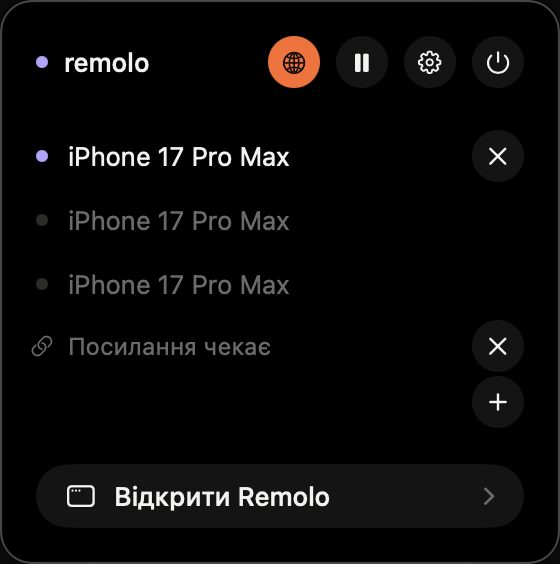
Get it on the Helper for Mac page and drag it into Applications. It is free and lives in the menu bar — a small icon appears next to the clock.
-
2
Allow Accessibility
On first launch the Helper asks for access: System Settings → Privacy & Security → Accessibility → turn on Remolo Helper. No remote can move the cursor or press keys without it.
-
3
Open Remolo on your iPhone
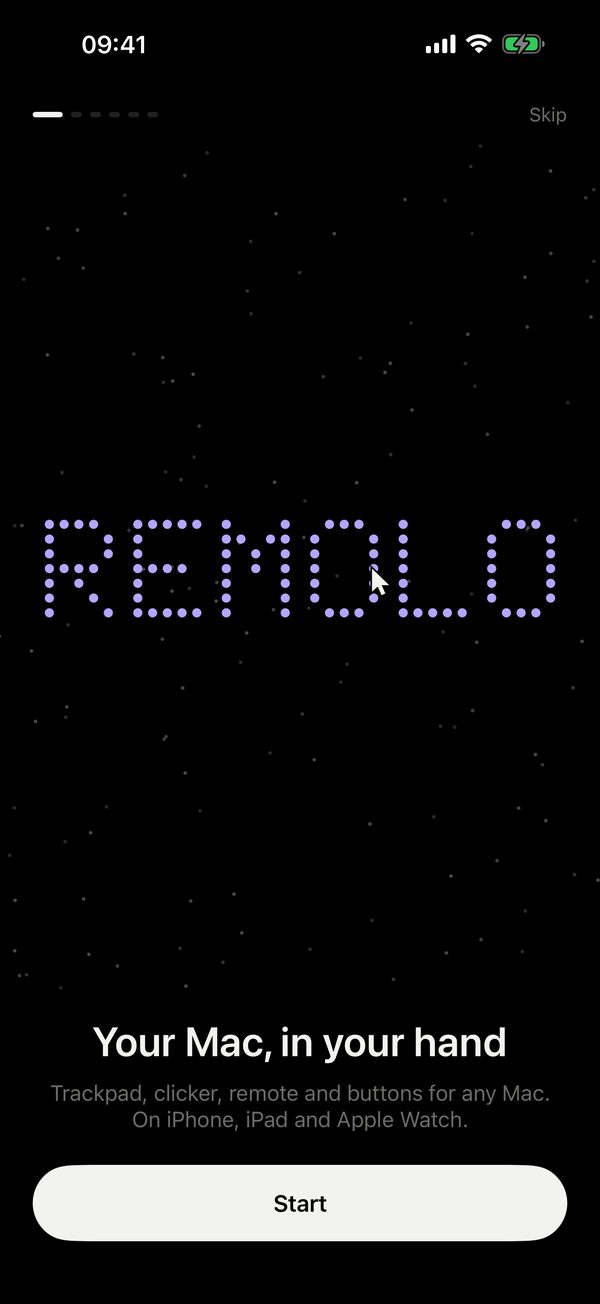
A few short intro screens, then the phone looks for your Mac nearby. If your iPhone asks about Local Network, tap Allow.
-
4
Enter the code from your Mac
Your Mac shows six digits in a small panel by the clock. Type them on the phone, once, or scan the QR code from the same panel. From then on the phone finds the Mac by itself. Mac not nearby? Instead of the code, use a one-time link from the Remolo Helper menu — “iPhone not nearby”.
-
5
Take the short tour
The first time in each mode, Remolo shows the gestures live: slide, tap, scroll with two fingers. While the tour runs, the Mac ignores you — try freely.
Mac not found?
The phone does not see the Mac
One Wi‑Fi network works best. No shared one (a hotel, a conference)? Remolo connects directly if Wi‑Fi and Bluetooth are on on both devices. Guest networks in offices and hotels often isolate devices from each other — then try the iPhone’s Personal Hotspot.
The Mac is not nearby — how do I connect?
On the Mac (ahead of time, or ask someone who is there): Remolo Helper menu → “iPhone not nearby”. Open the one-time link on your iPhone, check the Mac’s name and tap Connect. The link works once and turns on remote access on the Mac; staying connected from afar needs Remolo Pro.
Where is the Local Network permission?
On iPhone: Settings → Remolo → turn on Local Network.
The Mac firewall is on
Allow incoming connections for Remolo Helper when macOS asks, or in System Settings → Network → Firewall.