How to connect your iPhone to your Mac
To control a Mac from an iPhone, install Remolo on the iPhone and the free Remolo Helper on the Mac, scan the QR code in the Helper window, and turn the iPhone on its side: the Mac’s screen fills it and you tap it directly. Remolo is a remote desktop app for the Mac, made for touch on iPhone and iPad. You need iOS 18 and macOS 15 or later; no account, and at home no internet either.
Updated
-
1
Install Remolo Helper on the Mac
Install Remolo on the iPhone or iPad and tap Connect a Mac → Send the link to your Mac: AirDrop, Messages or Mail with the link remolo.app/mac. On the Mac it downloads the free Remolo Helper at once — double-click it and choose Move to Applications. No phone at hand? Download it here.
Prefer Terminal? The same in one line, with the signature checked:
curl -fsSL https://remolo.app/install.sh | zshWhat it does
-
2
Give 3 permissions in one window
On first launch the Helper opens one window, “3 permissions, once”: Control the Mac, to click and type; Local Network, so the iPhone finds this Mac nearby; and Screen & Audio Recording, to show the Mac’s screen and sound on the phone. Each has an Allow button: turn on Remolo Helper in the list and the tick appears by itself. After Screen Recording, macOS restarts the Helper; that is normal.
-
3
Scan the QR code or enter the code
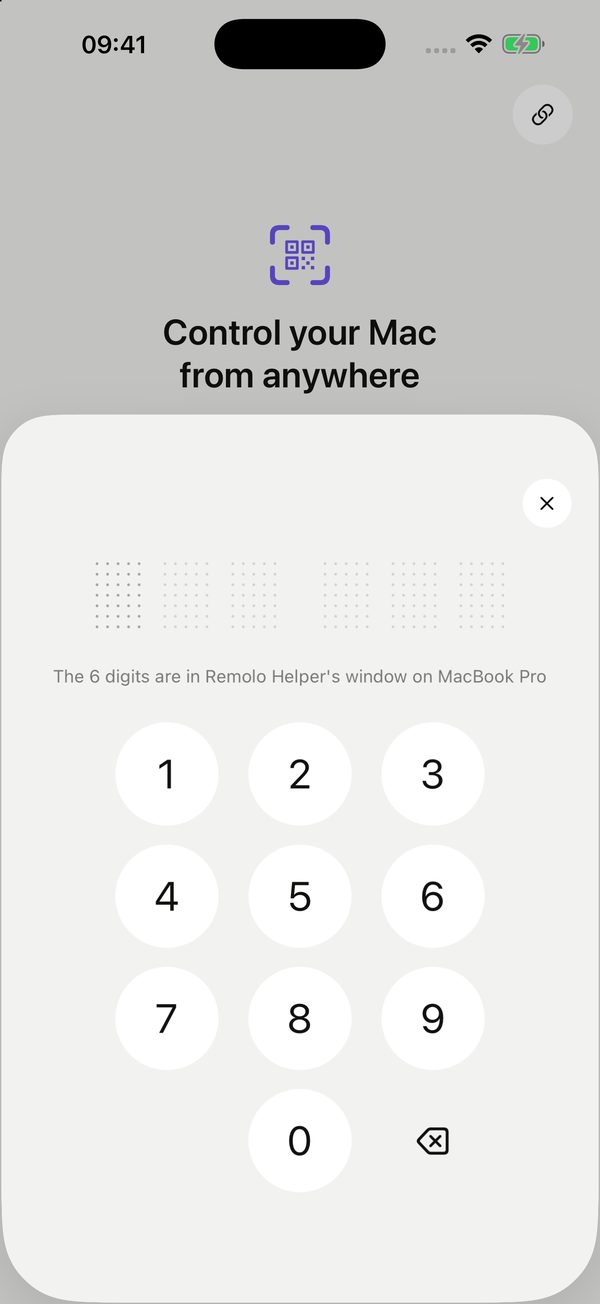
Once the permissions are done, the Helper window shows a QR code and 6 digits by itself — for 5 minutes for the first phone. In Remolo on the iPhone, tap Scan QR code and point the camera at the window, or Enter the code from the Mac: the iPhone asks for Local Network, finds the Mac nearby and asks for the digits. For one more phone the code stays hidden: on the Mac, click Show code and confirm with Touch ID or the password, and the code works for 2 minutes.
-
4
“Getting your Mac ready”
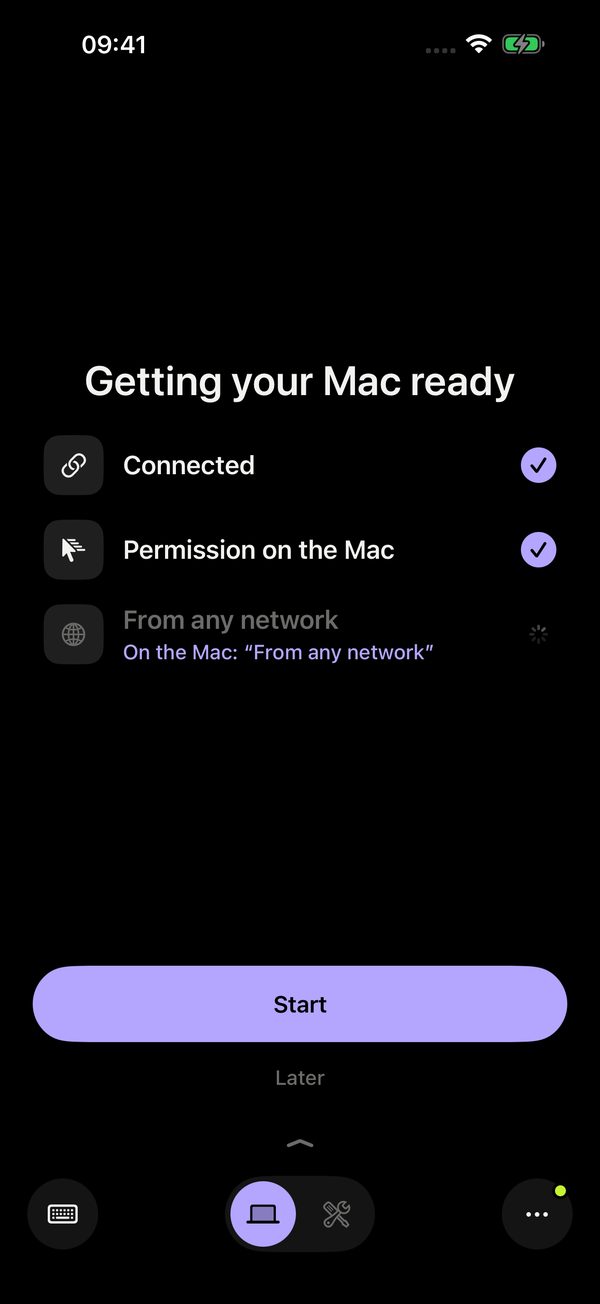
Once paired, Remolo shows “Getting your Mac ready” and ticks off Connected, Permission on the Mac and From any network. The last one turns on by itself with the first phone, so the Mac answers over mobile data, from the office or from another city. From then on the phone finds this Mac by itself.
-
5
Turn the phone on its side
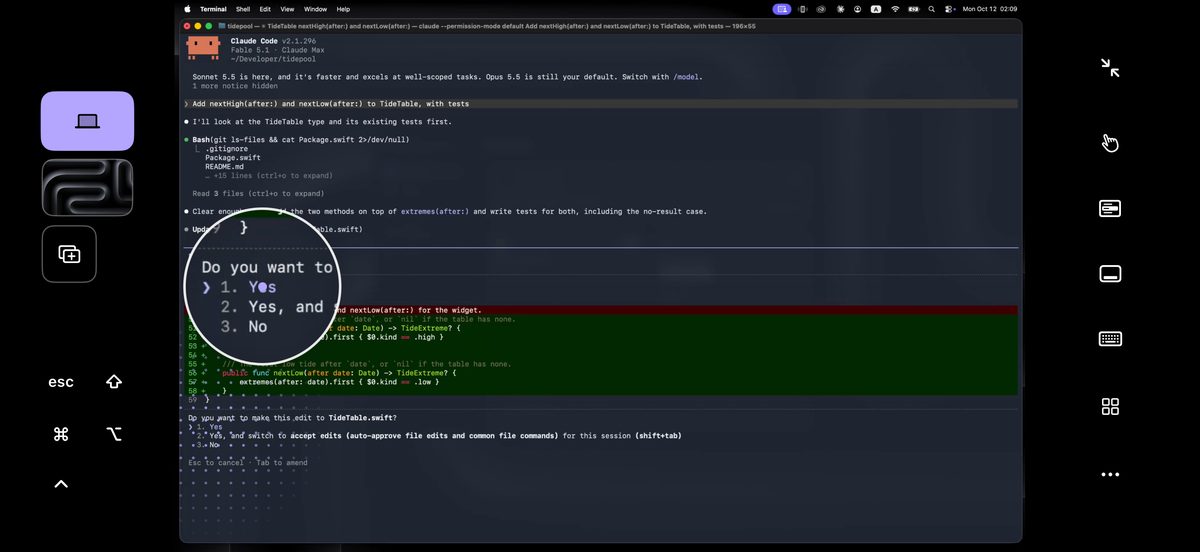
Turn the iPhone on its side and the Mac’s screen fills the display; touch it directly: tap to click, slide to scroll, hold to drag, two fingers for the context menu. Upright, the Mac’s screen sits above a trackpad. A short gesture tour starts by itself. All the gestures are on the control your Mac by touch page.
Mac not found?
The phone does not see the Mac
One Wi‑Fi network works best. No shared one (a hotel, a conference)? Remolo connects directly if Wi‑Fi and Bluetooth are on on both devices. Guest networks in offices and hotels often isolate devices from each other — then try the iPhone’s Personal Hotspot.
The Mac is not nearby — how do I connect?
On the Mac (ahead of time, or ask someone who is there): Remolo Helper menu → “Your iPhone on another network”. Open the one-time link on your iPhone (or, in Remolo, Mac not nearby), check the Mac’s name and tap Connect. The link works once and turns on access from any network on the Mac; from then on it is 10 minutes a day from afar for free, or unlimited with Remolo Pro.
I can’t see the code on the Mac
Once a phone is paired with the Mac, the code stays hidden so nobody can peek. Open Remolo Helper, click Show code and confirm with Touch ID or the Mac’s password: the QR code and 6 digits appear for 2 minutes.
Where is the Local Network permission?
On iPhone: Settings → Remolo → turn on Local Network.
The Mac firewall is on
Allow incoming connections for Remolo Helper when macOS asks, or in System Settings → Network → Firewall.
Mac not answering? “Why?” in the app tells you the reason, and status and known issues says what to do. About the Helper itself: Remolo Helper for Mac.
A month of Pro for those who wait
The iPhone and iPad app is coming soon to the App Store, and Remolo Helper for Mac is already available.
Coming soon to Europe. In the EU, Remolo comes to the App Store a little later. Leave your email and I’ll write as soon as it’s there.