Remolo help: controlling your Mac by touch
Remolo is a remote desktop app for the Mac, made for touch on iPhone and iPad. Turn the iPhone on its side and touch the Mac’s screen directly: tap to click, slide to scroll, hold and drag windows and files, two fingers for the Mac’s context menu. Below: every gesture and setting, connecting from any network, files, and what to do if something is off.
Mac won’t connect? “Why?” in Remolo names the cause, and the status page explains each one and lists known issues.
Looking for a step-by-step scenario — a Mac mini from iPhone, Claude Code from your phone, an iPad? See the Guides and how to control a Mac from iPhone.
Full screen and touch
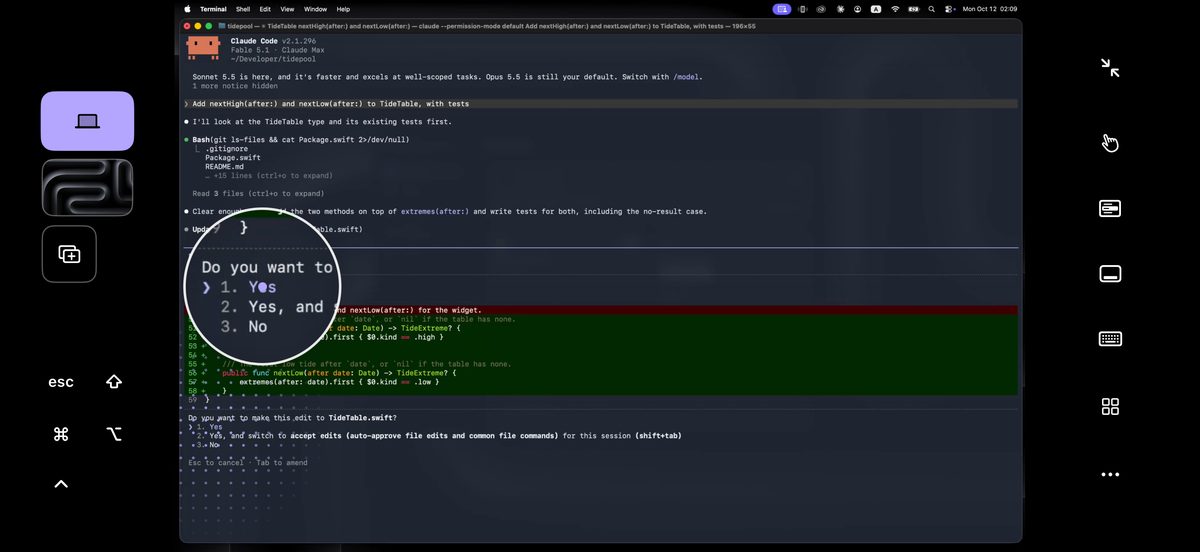
How do I control the Mac by touch?
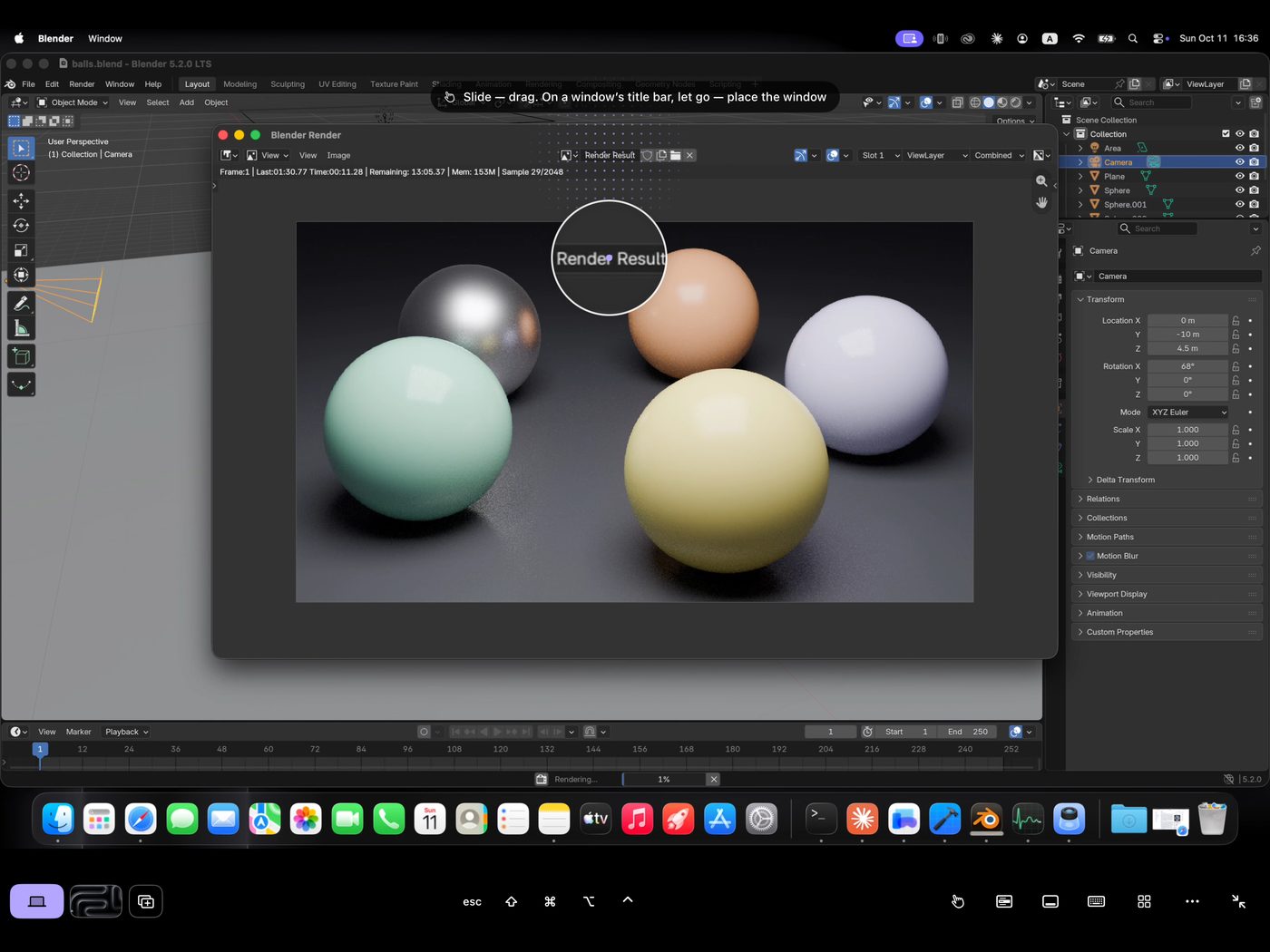
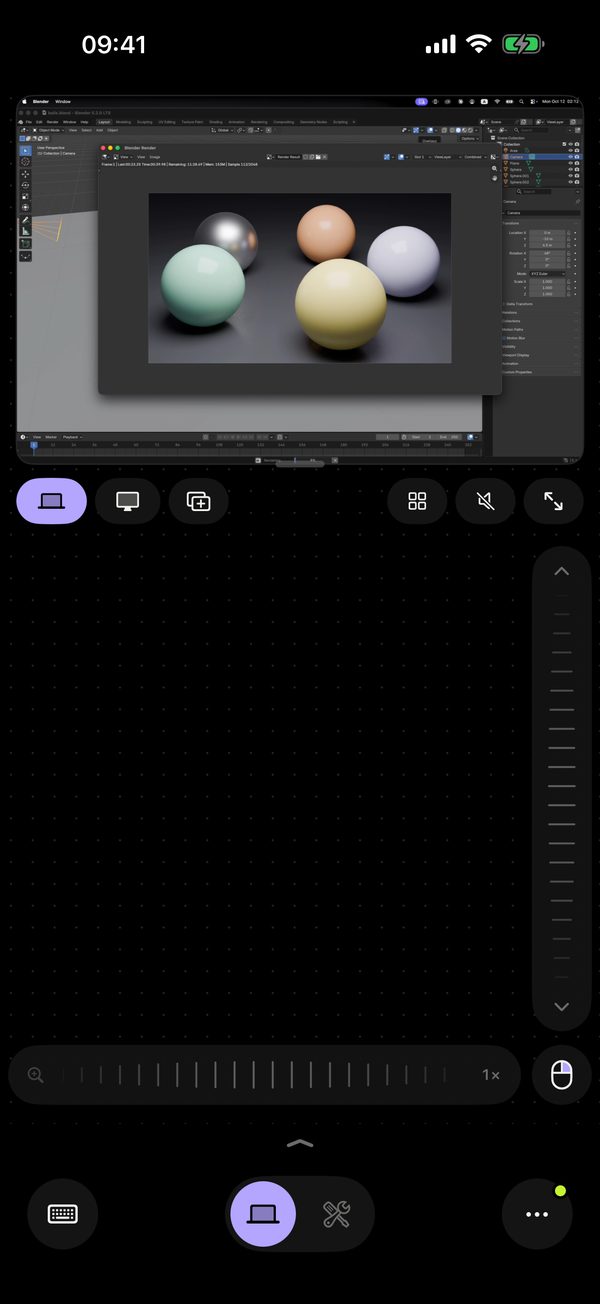
Turn the iPhone on its side — the Mac’s screen fills it by itself, and your finger touches it directly. Tap to click: touch just beside a button, a menu item or a field and the click snaps to it, with what was clicked outlined for a moment. Twice is a double click, and the word is selected with handles. Slide one finger to scroll what is under it; in Figma, Maps and the like one finger drags at once and two scroll. Hold — a loupe appears above your finger with the Mac’s pointer under it; move to drag a window, a file or a selection. Turn the phone upright and the trackpad is back. Free.
How do I open the Mac’s context menu?
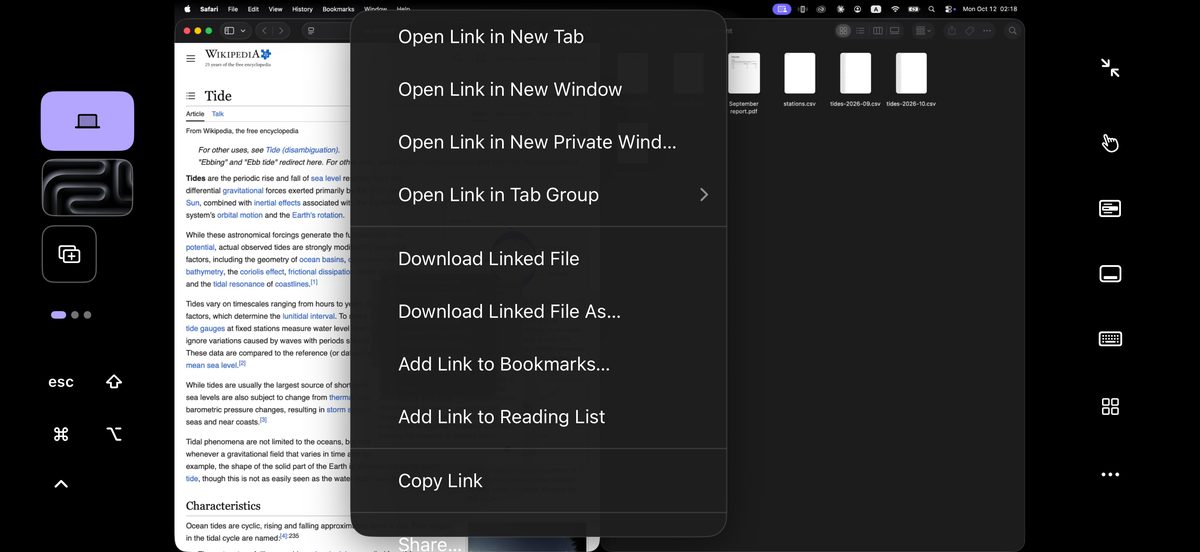
Tap with two fingers at once — that is a right click, and the Mac’s context menu opens right on the phone as big rows that are easy to hit, submenus included. Tap a row and the command runs on the Mac; a touch anywhere else closes the menu. In the same way, a tap on a menu title at the top of the Mac’s screen (File, Edit…) opens that menu on the phone.
How do I zoom into small text?
Tap twice with two fingers and the picture comes closer right there; again, and it goes back. A pinch zooms the picture too, and in Figma, Maps and Preview it zooms the app itself (with ⌘ held, any app). Two fingers move the magnified picture, and the “2×” badge in the corner brings back the whole screen. While you type, the picture closes in on the field by itself.
I prefer a cursor. How do I switch to the trackpad?
The hand button in the right column of full screen switches between Touch and Cursor. In Cursor mode your finger moves the Mac’s pointer as on a trackpad, with the gestures you know: tap to click, two fingers to scroll and right-click, hold to drag. Upright, Remolo always shows the Mac’s screen above the trackpad.
How do I move and arrange windows by touch?
Hold a window’s title bar and move — the window follows your finger; by a window’s edge the same drag resizes it. Hold the title bar and let go without moving to get buttons: left or right half, fill the screen, centre, macOS full screen, minimize, close. Drag a window onto another screen’s thumbnail and it moves there.
Where are the Dock, the app menu and the ⌘ ⇧ keys?
Swipe up in the black bar beside the picture for the Mac’s Dock; further up for all windows (Mission Control). There is also a Dock button in the right column. “App menu” shows the menu bar of the app in front on the Mac. Bottom left are esc ⇧ ⌘ ⌥ ⌃: one tap applies to the next touch (to select several files, say), another tap holds it, a third lets go.
How do I type on the Mac?
Tap a field on the Mac’s screen and the keyboard comes up by itself. Type in any language or dictate: the text goes straight to the Mac. The row above the keys has ⌘ ⌥ ⌃ ⇧, arrows, esc and Tab; “fn” swaps in F1–F12, and the globe switches the Mac’s input language. Hold the space bar and slide to move the caret on the Mac. “Text block” for long text is in Pro.
How do I switch between the Mac’s desktops?
In full screen, under the screen thumbnails, there are dots, one for each of the Mac’s desktops (an app in full screen shows as its icon). Tap for the list of desktops, and a row takes you there. Or swipe sideways with three fingers, as on a Mac trackpad. Desktops and three- and four-finger gestures are in Remolo Pro.
Can the iPhone be a second screen for the Mac?
Yes. In full screen, tap “+” after the screen thumbnails (“iPhone as a second Mac screen”): the Mac gets one more display shaped like the phone, and you can drag windows onto it. ✕ on its thumbnail removes it, and the Mac removes it by itself when the phone disconnects. Only the phone in control can do this. Free.
The Mac has several displays
In full screen, live thumbnails of every display sit at the top left: tap one to show it. Upright, the switcher is under the picture. Free.
How do I see the gestures again?
In full screen: “•••” → “Gestures” — a short tour of every gesture on a small Mac.
How does it work on iPad?
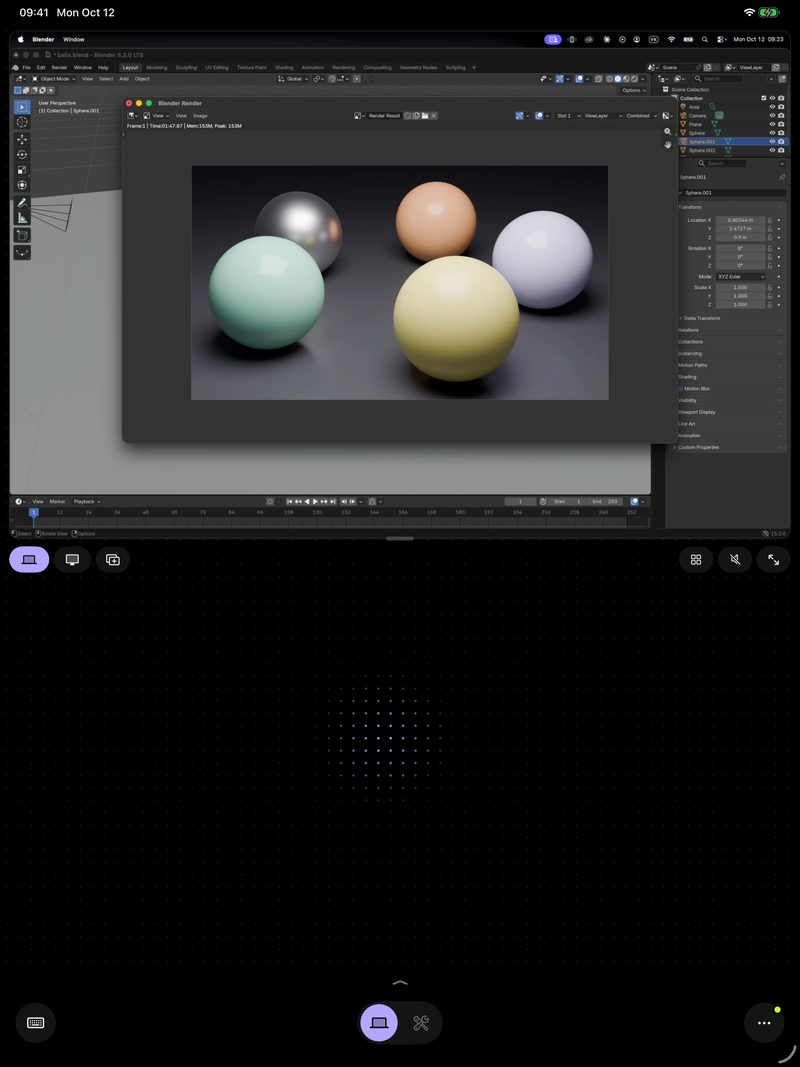
The same way, and it is the same app and the same purchase. Turn the iPad on its side and full screen with touch opens by itself (when Remolo fills the screen, not in Split View or Stage Manager); upright, the Mac’s screen sits above a big trackpad. On iPad the Dock and the modifier keys are buttons in the row under the picture.
The Mac’s screen, trackpad and watching
The cursor does not move
Almost always the Control the Mac permission (Accessibility) is missing. System Settings → Privacy & Security → Accessibility → turn on Remolo Helper. If it is on already, toggle it off and on: after a Helper update macOS sometimes “forgets” it.
How do I see the Mac’s screen on the phone?
It shows up right away — at home and from any network, at up to 60 fps. The Helper asks for Screen & Audio Recording in its first window; if that was skipped: System Settings → Privacy & Security → Screen & Audio Recording → Remolo Helper. Upright, the bar under the picture makes the screen taller, and two fingers or the zoom strip bring small things closer. At home for one Mac it is free, full screen included. The picture goes only to your phone, encrypted.
Smooth or sharp picture — how do I choose?
Settings → Mac screen, or “•••” → Picture in full screen: Smooth gives more frames for motion, Sharp gives crisper text, Balance sits between. Whatever you pick, once the Mac’s screen holds still Remolo sharpens the picture.
How do I just watch without touching anything?
“•••” → “Watch” on the Mac screen tile, or “Watch only” in full screen: the Mac’s screen across the whole phone, with no trackpad and no control. For a render, a build or an agent you need to keep an eye on. Free.
How do I watch the Mac from other apps?
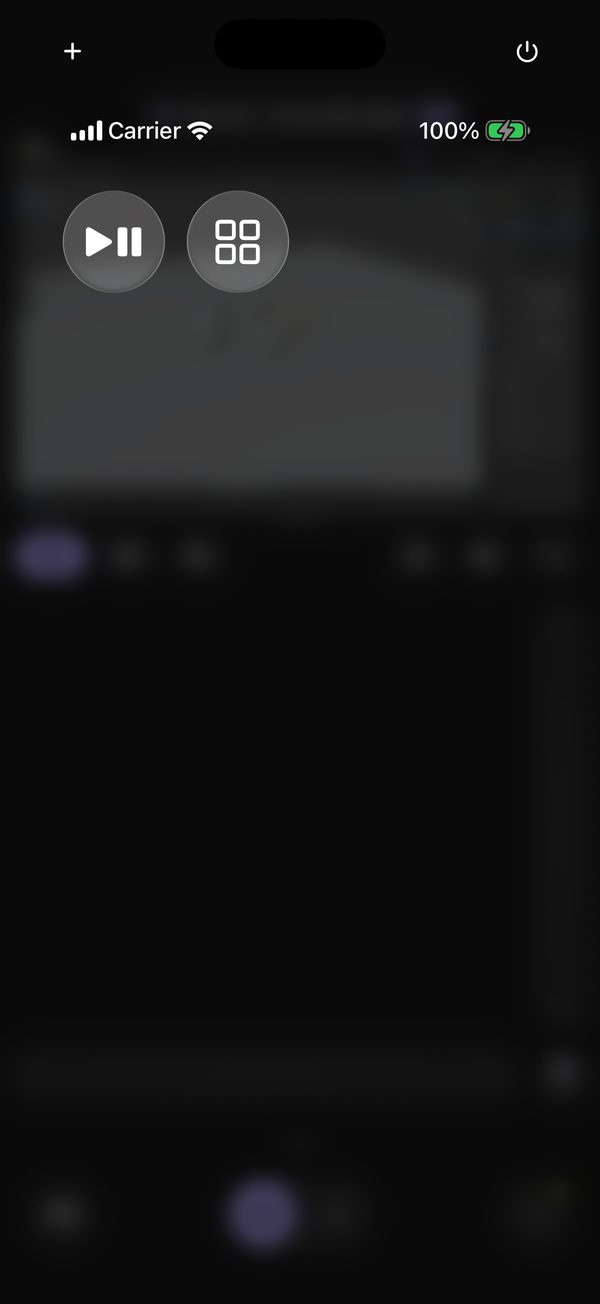
“•••” → “On top” (Pro): the Mac’s screen in a small window over other apps. Pinch into the part you need and the window shows just that. While the window is open, the connection to the Mac stays up.
How do I lay out windows from the Dock?
Open the Dock and hold an app’s icon: its windows and recent files are free, and Pro adds full screen, fill, halves, quarters, centre, “Next to…” and a “Grid” of four apps. To keep the Mac’s own Dock out of the way, turn on “Hide the Dock while a phone is in control” in Remolo Helper → Features.
How do I set my own trackpad gestures?
Settings → Trackpad → Gestures (Pro). By default they match your Mac’s settings. “Custom” gives you 11 three- and four-finger gestures, including a three-finger tap, each with a Mac action, a shortcut or an app.
Zoom does not work in an app
Some apps ignore pinch. On the Mac: Remolo Helper → Features → “Pinch to zoom with ⌘+ / ⌘−”.
Scrolling goes the wrong way
Remolo follows your Mac’s scroll direction: change it there and Remolo picks it up. Just for Remolo: Settings → Trackpad → Gestures → Custom → Natural scrolling (Pro).
Connecting
How do I pair an iPhone with a Mac?
Install the free Remolo Helper on the Mac and give the three permissions in its first window. The window shows six digits with a QR code under them: in Remolo, tap “Scan QR code” or “Enter the code from the Mac”. Then “Getting your Mac ready” ticks its checks, and you’re in control. No account. Step by step: Get started.
Can I install Remolo Helper from Terminal?
Yes: curl -fsSL https://remolo.app/install.sh | zsh. The script downloads the Helper from remolo.app, checks its SHA-256, our signature and Apple’s notarization, copies it to Applications and opens the permission panes; you switch the permissions on yourself. Read the script first, or add -s -- --dry-run to only check. Details on the download page.
Where is the pairing code? I can’t see it.
On first run the Remolo Helper window shows the code by itself, and it lasts 5 minutes. Once the Mac already has a phone, the code is hidden: Remolo Helper menu → “Connect another iPhone” → “iPhone or iPad nearby” → “Show code”, and the Mac asks for Touch ID or its password first. That code lasts 2 minutes, works once, and only from the same network. When a phone asks to pair, the Mac brings up a “… wants to connect” window with the same button. After five wrong codes in a row pairing closes — click “Show code” again.
The phone does not see the Mac
Check three things: Remolo Helper is running (the icon is in the menu bar), Settings → Remolo → Local Network is on on the iPhone, and the Mac is online. If the Mac doesn’t answer, tap “Why?” in Remolo — it names the cause, and the status page explains each one.
No shared Wi‑Fi
Hotel and conference networks often isolate devices. A phone that is already paired connects to the Mac directly, without a router, if both have Wi‑Fi and Bluetooth on and “From any network” is on on the Mac (it is by default). Or simply over mobile data. The first pairing by code works only on one network; otherwise use a one-time link.
My Mac is not nearby. How do I add it?
At the Mac (ahead of time, or by someone who is there): Remolo Helper menu → “Connect another iPhone” → “Your iPhone on another network”. The Mac makes a one-time link you can copy, send or show as a QR code. Open it on your iPhone anywhere and confirm the sign-in on the Mac itself. The link works once and lasts a day at most. For a phone added this way, files, the terminal, the curtain and unlocking the Mac open after a day — or at once if you pair it with the code next to the Mac.
I have several Macs
Add each one, with a QR code or a link. “•••” → “My Macs”: cards with each Mac’s last screen and its state. Tap to switch, hold to lock or sleep it without switching. Remolo knows each Mac by its own key, not by the network or IP address, so at home and at the office it is the same entry. One Mac is free; several are in Pro.
Can several phones connect to one Mac?
Yes: one controls, and the others see the screen and “… is in control”. Tap “Take control” and you’re in control; a guest taps “Ask”, and whoever is in control hands it over. Without Pro, one device at a time; with Pro, up to three. Every connected phone is listed in Remolo Helper.
How do I turn control off for a moment?
The Pause button in the Remolo Helper menu. While paused, phones can’t control the Mac or see its screen. Click it again to resume. At the Mac you can also press Esc three times: every device disconnects and Remolo pauses.
How do I forget a device?
On the Mac: Remolo Helper → Overview → Devices → Forget. On the phone: Settings → My Macs → ••• next to the Mac → Forget. The Mac forgets a phone that hasn’t been used for 90 days by itself.
The connection sometimes drops
Remolo reconnects by itself in a second or two, after a network change too. Frequent drops usually mean a weak signal.
Firewall on the Mac
System Settings → Network → Firewall → Options: allow incoming connections for Remolo Helper.
Does Remolo Helper update itself?
Yes. Helper updates itself, in the background, and never in the middle of a session: it downloads the new version quietly and installs it when no phone is connected. Updates are signed with our key, so the Mac installs only the real Remolo Helper.
From any network
How do I control the Mac from another network?
There is nothing to turn on: “From any network” turns on on the Mac by itself with the first phone (the switch is in Remolo Helper → Overview), and “Getting your Mac ready” ticks it after pairing. From then on Remolo finds the Mac from any Wi‑Fi or mobile data, with no account, router setup or VPN. Without Pro you get 10 minutes a day; with Pro there is no limit.
How does Remolo connect away from home?
By itself, there is nothing to choose: directly at home, and away from home over a direct line, even on cellular, or else through the encrypted Remolo relay. After a network change Remolo comes back by itself. To see how the connection runs, turn on Settings → Interface → Network status.
How are the 10 free minutes counted?
The Mac itself counts them: 10 minutes a day for all your phones without Pro together, only while you actually control it from another network. At home, on the same network, nothing is counted; in the background, on a locked phone and while reconnecting, nothing either. Remolo shows what is left before you connect and quietly warns 2 minutes before the end. The new 10 minutes come at midnight, Mac time. A guest’s visit runs on the owner’s Pro, so it doesn’t count.
The connection is slow. What does Remolo do?
It switches to an economy picture by itself: once the link gets weak, the Mac sends a crisp still after each action instead of video, without sound, and doesn’t push small changes like a clock or a blinking caret over the internet. Text is sharp as soon as the screen holds still. When the link is good again, the usual picture comes back. To turn it on by hand: “•••” → Picture → Economy in full screen.
The Mac sleeps while I am away
Turn on “Mac always ready to connect” (Remolo Helper → Overview → Details): then the Mac doesn’t go to sleep by itself and starts Remolo Helper at login, while the display turns off as usual. A closed laptop lid still puts the Mac to sleep, and a sleeping Mac can’t be woken from the phone — “Why?” in Remolo tells you what happened.
Will a Mac on battery stay reachable?
Yes, with “Mac always ready” on — while the charge is above 30 %, without Low Power Mode and overheating. Otherwise the Mac lets itself sleep to save the battery. A laptop is best kept plugged in with the lid open.
What does “Why?” do?
When the Mac doesn’t answer, tap “Why?” next to the status: Remolo checks the network, the Mac and the service and names one cause with what to do — the Mac is asleep, its lid is closed, it is off or offline, Remolo Helper is closed, or “From any network” is off on the Mac. Every cause is on the status page.
Is it safe over the internet?
Yes. All content is end-to-end encrypted on your devices, and the Remolo relay neither stores nor can read it. Only devices already paired and guests with valid access can connect. Details on the Security page.
Files, the Files app and Share
How do I get a file from the Mac onto my phone?
“•••” → “Files & clipboard” (Pro): the Mac’s Desktop, Documents, Downloads and home folder, with search. Tap a file and it opens on your iPhone, ready to save to Files or Photos. In “iPhone to Mac”, the “Photos & videos” and “Files” buttons send them to the Mac’s Downloads. At home and from any network.
How do I open the Mac in the Files app?
With Remolo Pro each of your Macs shows up in the iPhone’s Files app as its own location, with the folders you allowed in Remolo Helper → Features → Folders for Files. Open and download files from the Mac and save into its folders — Remolo connects to the Mac by itself, without opening the app.
How do I send something to the Mac from another app?
The Share sheet in any app → “Send to Mac”. A link opens in the Mac’s browser, text lands on the Mac’s clipboard, and files go to Downloads. Text and files are in Pro and only for the Mac’s owner, not guests.
How does the shared clipboard work?
Above the keyboard is the last thing copied, on the Mac or the iPhone, with “Paste”: it goes wherever the cursor is on the Mac. What the Mac copied also waits in “•••”: one tap and it is on your iPhone’s clipboard. To get Mac text on the iPhone right away, turn on “Auto-copy from Mac” in Files & clipboard. Anything password managers mark as concealed never leaves the Mac. It is a Pro feature.
Sound, media and the curtain
How do I hear the Mac’s sound on the phone?
The “Mac sound” speaker button beside the picture of the Mac’s screen — and the Mac’s sound plays on the phone (it keeps playing on the Mac too). From another network the sound is on from the start; on the same network it is one tap away, and Remolo remembers your choice. In the economy picture on a weak link the sound is off. Free.
How do I control music and video on the Mac?
Media mode: tap the big area to pause, swipe sideways for ±10 seconds, slide up or down or use the iPhone’s volume buttons for the Mac’s volume. You see the artwork, title and progress of what plays on the Mac, from any app, even YouTube in a browser. The row of buttons under the player adapts to it: in YouTube, “Slower” and “Faster” with the current speed; in Netflix, “Skip intro”; in VLC, “Audio track”. Scrubbing and the sleep timer are in Pro.
I cannot see what is playing
Remolo shows what macOS considers “Now Playing”. Start playback once and the title and artwork appear.
How do I hide the Mac’s screen from people nearby?
“•••” → “Hide the Mac’s screen”. The Mac shows a full-screen curtain that says which phone is controlling it, while the phone keeps the screen; Esc or a click with the Mac’s mouse or trackpad removes it. Free: the curtain with the Remolo logo; black, your own picture or a video are in Pro, chosen on the Mac: Remolo Helper → Features → Curtain.
Lock, sleep and Face ID
How do I lock or put the Mac to sleep from the phone?
“•••” → the lock and sleep buttons above the tiles, or hold a Mac’s card in My Macs. Only someone at the Mac can wake it from sleep, so to keep access from afar, lock it instead.
How do I unlock the Mac with Face ID?
When the Mac is locked, “Unlock” appears above the trackpad: type the password and Remolo types it on the Mac. Tick “Remember for Face ID” and from then on a glance is enough. The password stays only in this phone’s Keychain, behind Face ID, never goes to iCloud or other devices, and is saved only after it has really opened the Mac. From another network only if you turn on Settings → Unlock the Mac remotely. It is a Pro feature.
Guest access
How do I let someone else use my Mac?
Remolo Helper menu → “Connect another iPhone” → “Guest access” (or “Guest” in Overview). Pick how long — an hour, a day or 7 days — and what is allowed: trackpad and keyboard, media, the Mac’s screen. The Mac gives you a one-time link that the guest opens on their iPhone. The owner needs Remolo Pro; the guest does not.
What can a guest never do?
Files, the clipboard, the terminal, buttons with actions or scripts, sleeping or locking the Mac, quitting apps and your button profiles — never. The Mac never sends a guest its own relay room, typed text, the clipboard or the battery level. The Mac itself enforces the rules. Still, trackpad and keyboard let someone do anything you could at the Mac, so tick them only for people you trust.
How do I take access back?
In the Remolo Helper menu, next to the guest: “End access” — any time, even before the time is up. A link nobody has used yet is withdrawn there too, with “Withdraw link”.
How safe is a guest link?
It works once, carries a 256-bit secret that burns on the first wrong attempt, and lasts a day at most (and never longer than the access itself). The guest lands in a separate temporary relay room, never the Mac’s own, and the Mac’s key inside the link makes sure the phone talks only to that Mac. The secret sits after the “#”, so the server never receives it. Only open links from people you trust.
Widgets, Siri and Control Center
How do I add a widget?
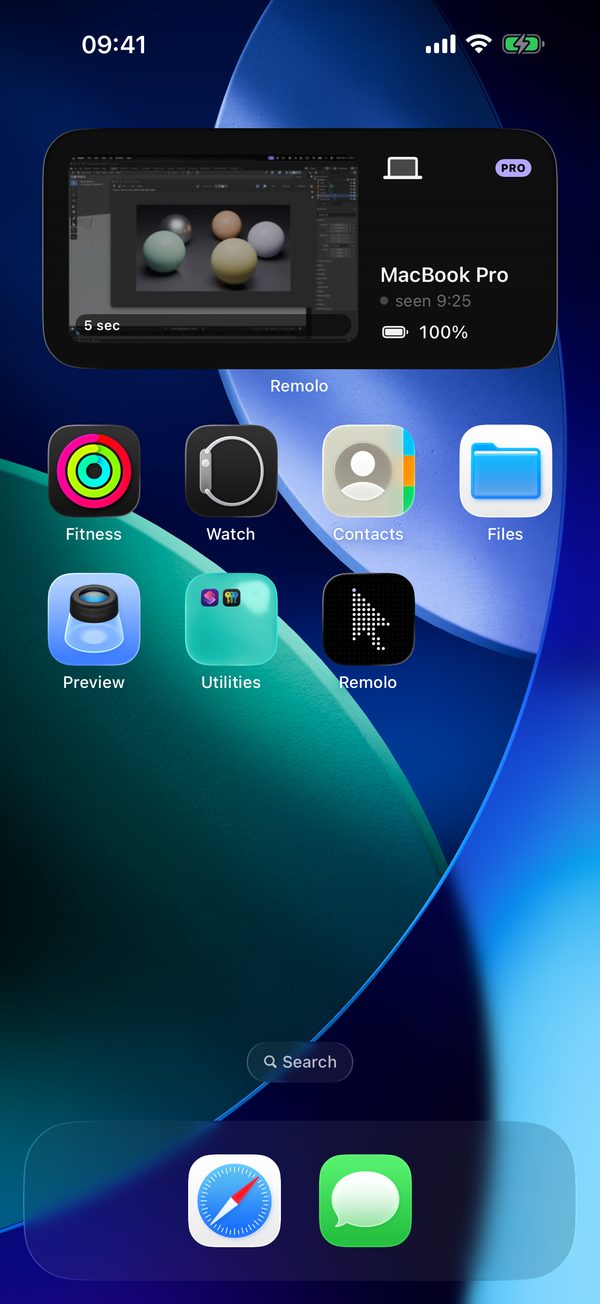
Hold the Home Screen → Edit → Add Widget → Remolo. “Remolo buttons” shows the current profile’s buttons, “Now playing on Mac” the artwork and pause, “Mac status” whether the Mac is online, its battery, the lock and remote access; with “From any network” on, it knows even when Remolo is closed. A tap runs the action on the Mac. It is a Pro feature.
How do I put Remolo on the Action button or in Control Center?
Action button: iPhone Settings → Action Button → Controls → Remolo. Control Center: open it → “+” → Add a Control → Remolo. You get “Pause on Mac” and “Remolo button”, where you pick any of your buttons. It is a Pro feature.
What do I say to Siri?
Siri phrases are English only: “Pause Remolo”, “Lock my computer with Remolo”, “Press [button name] in Remolo”. Shortcuts has every action and your buttons for automations; if the Mac is not connected, the action connects to the last Mac by itself. It is a Pro feature.
Buttons, terminal, languages and accessibility
How many buttons are free?
Six buttons of your own in one profile are free: a hotkey, an app, a file or a link, text, a Mac action. More buttons, profiles, chains and scripts are in Pro. Details on the Buttons page.
How do I turn on Terminal mode?
It stays off until you turn it on on both sides. On iPhone: Settings → Advanced → Terminal mode. On the Mac: Remolo Helper → Features → Terminal. It is your zsh in the Mac’s home folder, and commands really run; up to four windows side by side, and when a command runs 10 seconds or longer the phone tells you when it finishes. It is a Pro feature.
How do I change the language?
Settings → Language: Ukrainian, English, German, French or Spanish — or the same as the system. Remolo Helper on the Mac has the same choice under General. All languages are free.
Does it work with VoiceOver and larger text?
VoiceOver reads out buttons, modes and settings. Most screens — settings, the Guide, lists — follow larger text sizes; the control screen keeps fixed sizes so the touch areas do not move. Remolo respects Reduce Motion.
“Something wrong?” and crash reports
How do I report a bug?
Shake the phone (you can turn this off in Settings → Support) or open the “•••” menu → “Something wrong?”. Describe what happened and send it. The reply and the status (received, confirmed, fixed in a version, not a bug) appear in Settings → My reports.
What is sent with a report?
A random install ID, your text, the language and technical details — no names, no content. An email and a screenshot only if you add them. Only the developer, KIRIL TREITIAK, reads reports; they are never sold or shared.
How long are reports kept?
180 days. The “Delete all my reports” button in My reports erases them from the server at once.
What is the reward for a bug?
For every bug we confirm and reproduce, a code for a month of Remolo Pro, up to 6 a year. The third confirmed bug brings a year of Remolo Pro and Remolo Insider status. Your name appears in the site’s thanks only if you add it yourself, and you can remove it any time. Rewards never depend on App Store ratings or reviews.
Crash reports
Only with your consent. On iPhone: Settings → Advanced → Crash reports: Ask (the default), Always or Never. On the Mac they stay off until you turn on “Send crash reports” in Remolo Helper → General. A report holds technical data only: the version, the model and the crash trace. No screen, text or files. Kept for 90 days.
Look and purchases
How do I switch to the light theme or change the icon?
Remolo settings → Appearance: System, Light or Dark theme for free; app icons in Pro. On the Mac, the theme is in Remolo Helper → General → Theme.
What is free and what is in Pro?
Free, for one Mac: full touch and trackpad control at home, the Mac’s screen with sound, the keyboard, the Dock, media, the second screen, 6 buttons and 10 minutes a day from another network. Remolo Pro adds unlimited access from anywhere, desktops, files and clipboard, the Mac in Files, several Macs, up to three phones, Face ID unlock, On top, guest access and more.
Is there a free trial?
Yes: the yearly plan starts with 7 free days through the App Store. Cancel at least 24 hours before the week ends and you are not charged. The monthly plan has no trial.
How do I cancel?
Remolo settings → Remolo Pro, or iPhone Settings → your name → Subscriptions → Remolo.
Pro is missing on a new phone
Tap any Pro feature and choose “Restore purchases”.
How fast does support answer?
Honestly: Remolo is made by one person. I read every “Something wrong?” report myself and answer in the app as soon as I can. Many fixes are already on the status and known issues page, and the email is on the support page.
We never ask for access
Remolo never asks for your code, link or access to your Mac — not by email, phone, chat or ads. Whoever asks is a scammer, even if they call themselves Remolo support. Only ever use a code or a link yourself, on your own iPhone.
The official channels are these and no others:
- remolo.app — the website and the only place to download Remolo Helper
- support@remolo.app — support; our emails only ever come from @remolo.app addresses
- the Remolo page on the App Store (from launch day)
- @RemoloApp on X · @RemoloApp on YouTube
Did not find an answer? Write to us: support@remolo.app