A clicker you use without looking, and Keynote in your hand
Slides in Remolo is a clicker for Keynote, PowerPoint, Google Slides and PDFs: tap and swipe, a talk timer and a curtain with the Remolo logo, all free. With Keynote and Pro, the phone shows the current and next slide, starts the show, keeps a grid of every slide, your pace, a rehearsal and your notes, and you draw the laser and marker right on the slide.
Updated
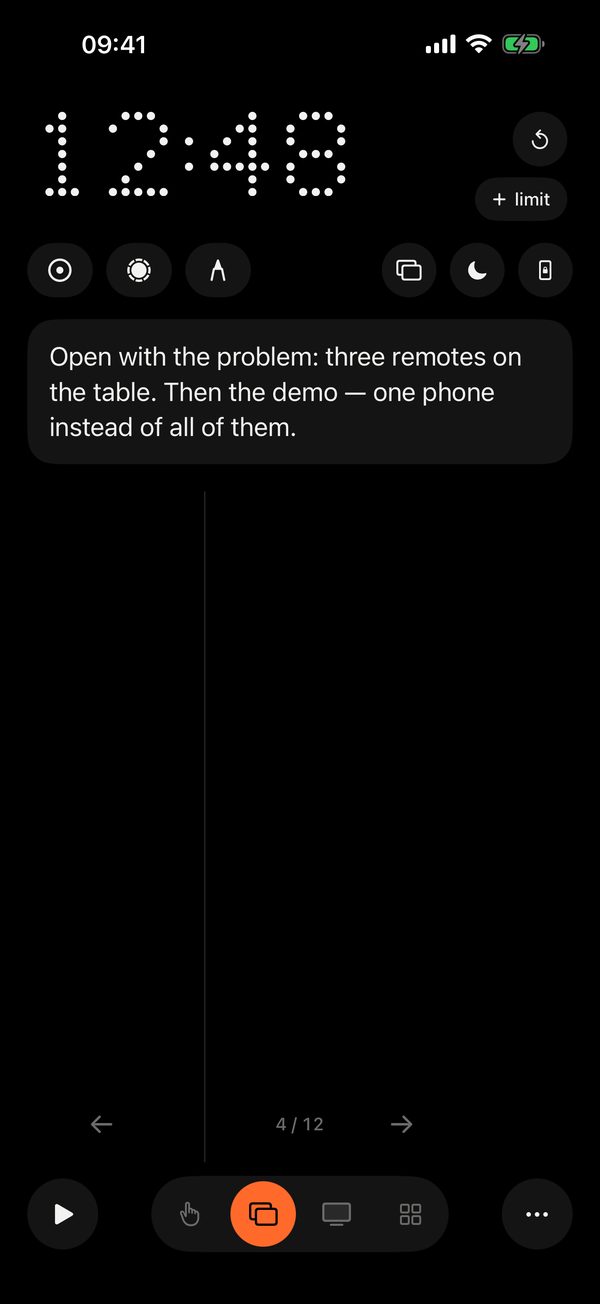
A clicker for any app
Most of the screen is the “next” button and the left third goes back; swipes work too. The screen tells you which app the arrows reach and offers a way back to Keynote. Free.
Timer
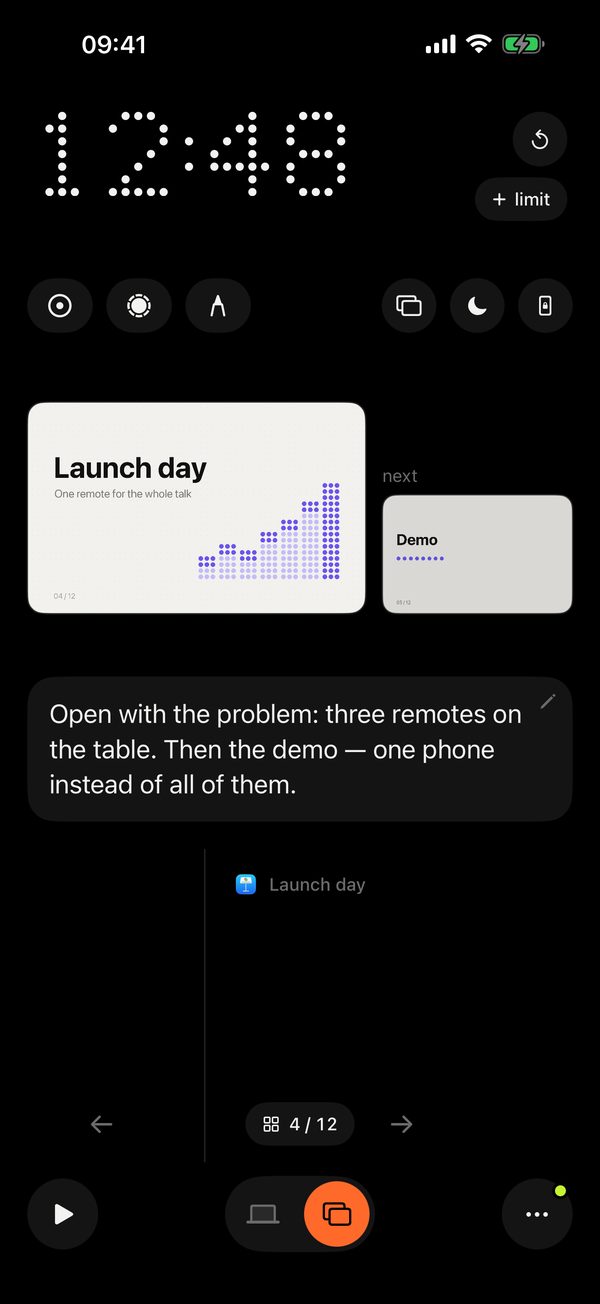
Tap the digits to start or pause, ↺ to reset; stopwatch or countdown in Settings → Slides. With Keynote, ▶ starts the show from the current slide (■ stops it) and the timer runs with it; with other apps ▶ starts the timer and you start the show there. With Pro, set a limit, say 20 minutes, and the phone buzzes quietly two minutes before the end.
Curtain
Hold the slide area or tap ☾ and a curtain with the Remolo logo gently covers the slides, so the room looks at you. With Pro: a black screen, your photo or a video, chosen on the Mac (Remolo Helper → Settings → General → Curtain). With Keynote, during the show ☾ turns the screen black, a long press white.
Keynote on the phone
The current slide large, the next one beside it, and your speaker notes underneath. Spot a mistake in the notes? Fix it right on the phone: the pencil on the card, and the change is already in Keynote.
Every slide in a grid
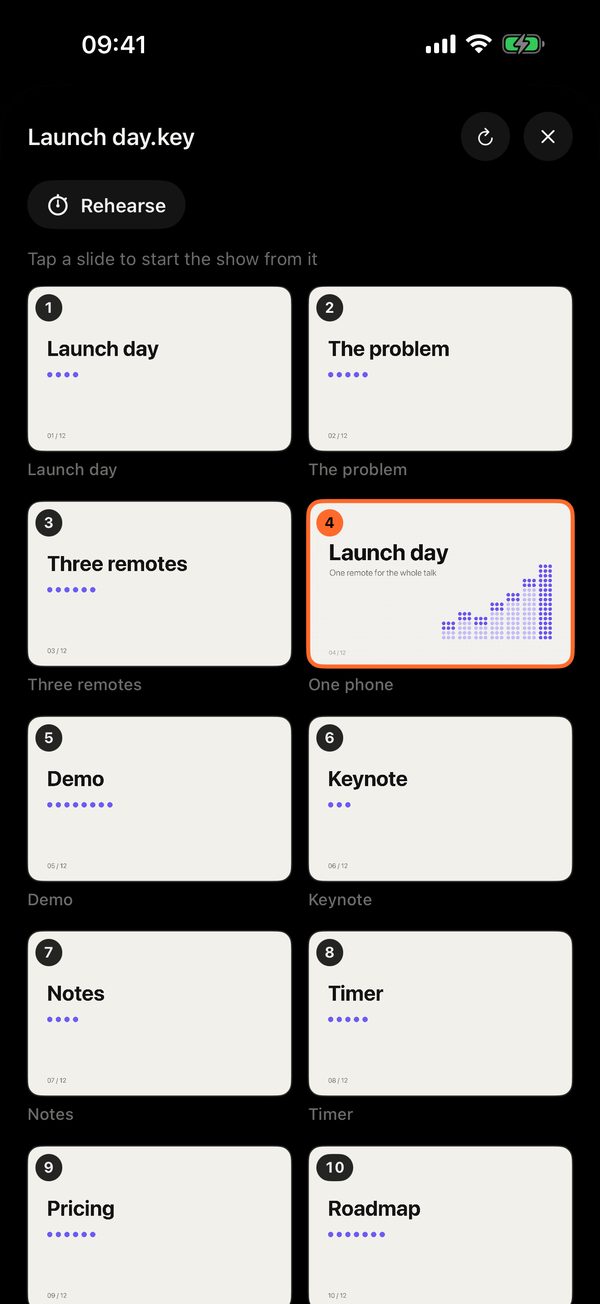
The “▦ 7 / 24” button opens a grid of every slide: tap to jump to one or start the show from it.
Pace and rehearsal
Under the timer: how long you have been on the current slide and whether you will make the limit. Rehearse in the grid remembers each slide’s time, and on stage you see whether you are ahead or behind.
Laser, spotlight and marker
With Keynote the panel shows the slide itself: touch it and the laser dot appears in the same spot on screen; slide your finger to draw with the marker. With other apps, keep a finger on the screen and aim the phone like a real pointer. Spotlight dims everything but a circle around the dot. Marker lines fade by themselves.
Seven colours for the laser and marker. With several displays you choose which one to use.
Speaker notes
The current slide’s notes on your phone while you look at the room. From Keynote and PowerPoint; in Keynote you can edit them too.
Pocket mode
Phone in your pocket, the volume buttons change slides. The screen ignores accidental touches.
iPad as a presenter display
Stand the iPad on its side on the lectern and it becomes a Keynote presenter display: the current and next slide, your notes and a clock you can read across the stage.

Questions
Which apps are supported?
The clicker: Keynote, PowerPoint, Google Slides in a browser, Preview and any PDF — anything that moves with the arrow keys. The slides screen tells you which app the arrows reach. Slide previews, starting the show with ▶, the slide grid and rehearsal are Keynote only.
What is free and what is Pro?
Free: tap and swipe to change slides, the talk timer, the curtain with the Remolo logo. In Pro: Keynote on the phone (current and next slide, ▶, grid, pace), rehearsal, speaker notes, the laser, spotlight and marker, a time limit with a buzz, pocket mode, your own curtain and the presenter display on iPad.
Why notes only from Keynote and PowerPoint?
These two apps let other apps read the notes of the current slide, and Keynote also lets them be changed. Google Slides does not, so with them you get the timer, clicking, laser and marker.
How does rehearsal work?
In the Keynote slide grid tap Rehearse and run through the talk: Remolo remembers how long you spent on each slide. On stage, under the timer, you see how long you have been on the current slide and whether you are ahead of or behind your rehearsal.
How does pocket mode work?
It is a Pro feature. The phone-with-lock icon: the screen dims, touches are ignored, and the volume buttons change slides. To leave, hold the lock button for a second.
Can I change slides without unlocking the phone?
Yes, with Pro: while the timer runs, the Lock Screen and the Dynamic Island show the time, the slide number and ← →. There is also pocket mode and Siri phrases in English, like “Next slide in Remolo”.
Is the laser shown on the second screen?
Yes. With several displays connected, a screen picker appears in the mode, and Remolo remembers your choice.