How to type and dictate text on your Mac from your iPhone
In short: in Remolo tap the keyboard next to the trackpad: type in any language or dictate, and the text appears in the active field on the Mac right away. There are ⌘⌥⌃⇧, esc, tab, arrows and F1–F12. It is free; with Remolo Pro you can also send the whole text as one block and pass text from the iPhone’s clipboard to the Mac.
Updated
What you need
- A Mac with Remolo Helper and the Accessibility permission.
- An iPhone or iPad with Remolo.
Step by step
Put the cursor in a field on the Mac
Point at the field with the trackpad and tap — as with a mouse.
Open the keyboard
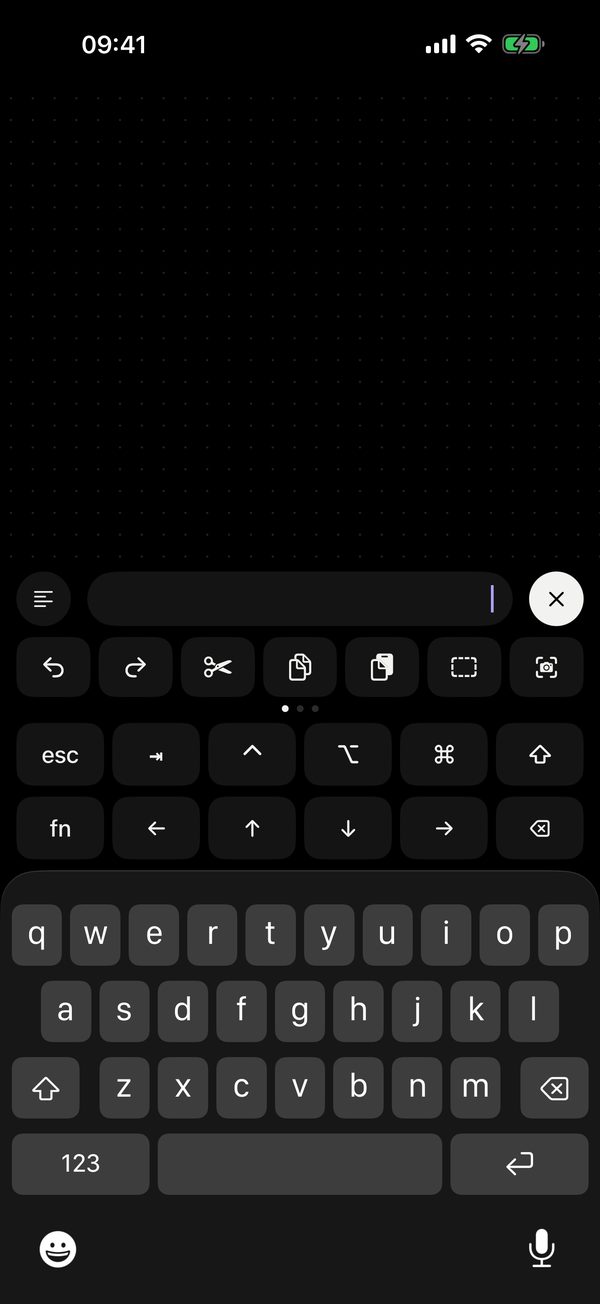
The keyboard button at the bottom left. Type in any language, switching the iPhone’s layouts.
Or dictate
The microphone on the iPhone keyboard — dictated text goes to the Mac just the same.
Shortcuts
The row above the keyboard: ⌘⌥⌃⇧, esc, tab, arrows, F1–F12; in Pro also a bar of 21 shortcuts.
Long text
To send a paragraph or a message whole, Pro has “Text block”: write it on the phone, check it and send it to the Mac in one go. Text copied on the iPhone goes to the Mac with the Paste button in Files & clipboard.
Honest limits
- Remolo never reads password fields: type the password blind on the phone keyboard or on the Mac itself.
- Text block and the clipboard are part of Remolo Pro.
Questions
Do Ukrainian, Cyrillic or CJK work?
Yes: Remolo sends finished characters, so any iPhone keyboard language works regardless of the Mac’s layout.
Does it work over the internet?
Yes, with Remolo Pro and access from anywhere.
More guides
- How to control a Mac mini from your iPhone, at home and remotely
- How to check from your phone whether Claude Code has finished
- How to use your iPhone as a trackpad for your Mac
- How to advance Keynote and PowerPoint slides from your iPhone
- How to get a file from your Mac when you are not at home
- How to turn your iPhone into a Stream Deck-style button panel for your Mac
- How to control a Mac from your iPad
- How to control films and music on your Mac from the sofa
- How to advance slides from your Apple Watch
- How to lock or sleep your Mac from your iPhone
- How to give someone temporary access to your Mac