How to wake a Mac remotely — and how to keep it from sleeping
In short: waking a sleeping Mac from an iPhone over the internet usually doesn’t work: macOS wakes for network requests only on the local network (“Wake for network access”), and services that wake a computer from afar need another device that stays on in the same network. The reliable way is not to let the Mac fall asleep: in Remolo Helper turn on “Mac always ready to connect” — a plugged-in Mac won’t sleep on its own, the display turns off as usual and comes back as soon as you connect. And you can put the Mac to sleep or lock it from your phone any time.
Updated
What you need
- A Mac on macOS 15 or later, plugged in. A MacBook with the lid open, or charging with a display connected.
- Remolo Helper on the Mac and Remolo on the iPhone, paired once.
- To connect from away from home: Remolo Pro.
Step by step
Turn on access from anywhere
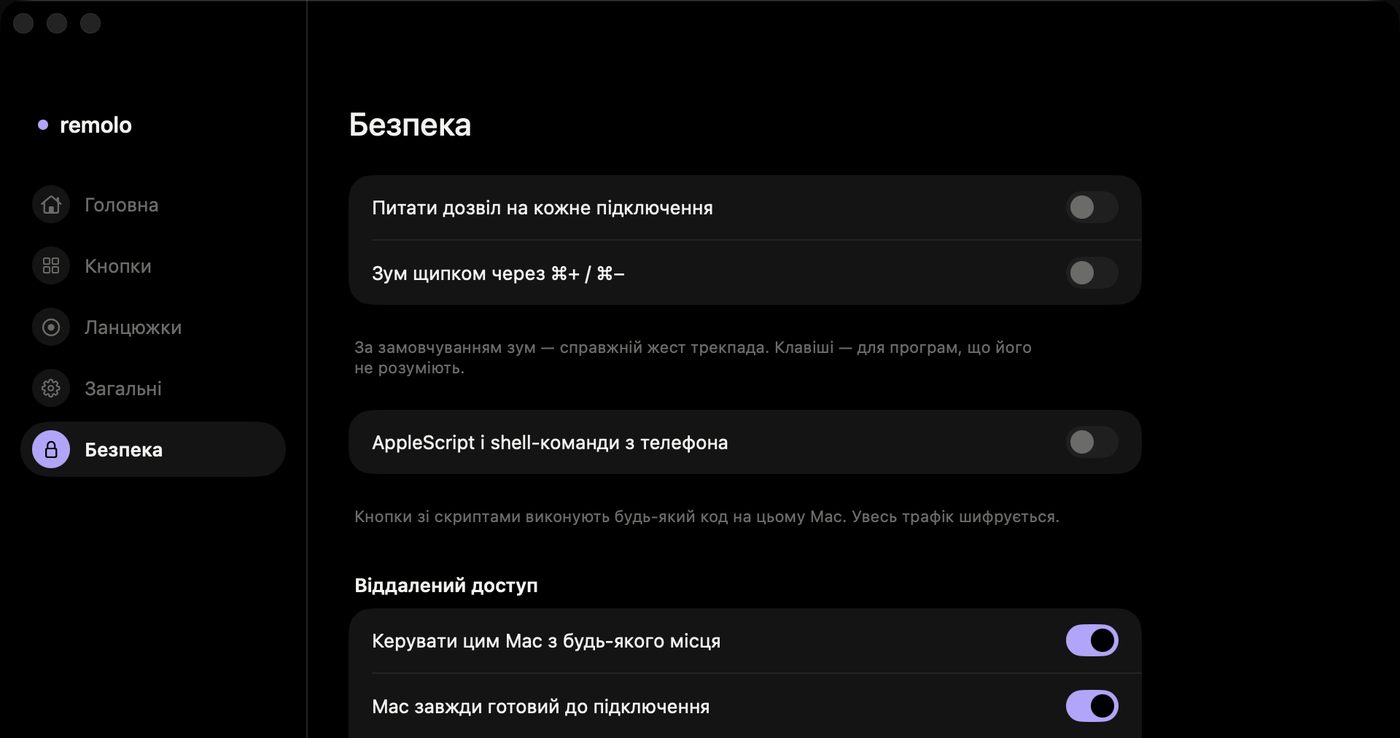
In the Remolo Helper menu click 🌐, or open Settings → Security → “Control this Mac from anywhere”.
Turn on “Mac always ready to connect”
In the same Security section. The Mac won’t go to sleep by itself and opens Remolo at login; the display turns off as usual and wakes as soon as you connect.
Keep the Mac plugged in
A closed MacBook lid or a flat battery will still put the Mac to sleep — it stays offline until someone wakes it in person.
Put the Mac to sleep from your phone when you are done
A button with the system action Sleep, Lock or Turn off display — step by step in the guide on locking your Mac from iPhone. Just remember: once asleep, the Mac can’t be woken from the road.
If the Mac is already asleep
On the same network macOS can wake by itself: with “Wake for network access” on (System Settings → Energy or Battery) the Mac wakes when another device accesses its shared resources. Over the internet that doesn’t work — and Remolo doesn’t wake a Mac that is asleep or off either.
What other tools do
TeamViewer on paid plans and AnyDesk wake a computer with Wake-on-LAN, but only with a second device that stays on in the same network, and AnyDesk only Intel Macs. Apple Remote Desktop wakes Macs on the same subnet. Comparisons on Remolo or TeamViewer and Remolo or AnyDesk.
Honest limits
- Remolo doesn’t switch on or wake a Mac: it has to be on and awake.
- “Mac always ready” works while access from anywhere is on.
- There is no built-in button to restart or shut down the Mac.
Questions
Can I turn on my Mac from my iPhone?
No — neither Remolo nor any other remote turns on a Mac that is off. Keep it on and plugged in, with “Mac always ready”.
Can I put my Mac to sleep from my phone?
Yes: the system actions Sleep, Lock and Turn off display are free at home, and from any network with Remolo Pro. There is also a sleep timer in Cinema mode (Pro).
Can I restart or shut down the Mac?
There is no dedicated action. With Pro you can make an AppleScript button if you allow scripts in Remolo Helper — but once it is off, you can’t switch the Mac back on from the road.
More guides
- How to control a Mac from your iPhone: every way
- How to control a Mac mini from your iPhone, at home and remotely
- How to check from your phone whether Claude Code has finished
- How to use your iPhone as a mouse and trackpad for your Mac, free
- How to advance Keynote and PowerPoint slides from your iPhone
- How to get a file from your Mac onto your iPhone without iCloud — even away from home
- How to turn your iPhone into a Stream Deck-style button panel for your Mac
- How to control a Mac from your iPad
- How to control films and music on your Mac from the sofa
- How to advance slides from your Apple Watch
- How to lock or sleep your Mac from your iPhone
- How to type and dictate text on your Mac from your iPhone
- How to give someone temporary access to your Mac