How to use your iPhone as a trackpad for your Mac
In short: install Remolo on your iPhone and the free Remolo Helper on your Mac, and the phone becomes a trackpad: slide a finger, tap to click, use two fingers to scroll or right-click, spread them to zoom, hold and drag. There is a keyboard in any language too. All free, with no ads.
Updated
What you need
- An iPhone or iPad on iOS 18 or later.
- Any Mac on macOS 15 or later — including a Mac mini, Mac Studio or Mac Pro with no trackpad of its own.
- One Wi‑Fi network — or Wi‑Fi and Bluetooth on both devices when there is no shared one.
Step by step
Install Remolo Helper on the Mac
It is free: download it, drag it into Applications and open it.
Allow Accessibility
System Settings → Privacy & Security → Accessibility → Remolo Helper. Without it macOS lets no remote move the cursor.
Pair the iPhone
Open Remolo, pick the Mac and enter the six digits from its screen — once.
Use it
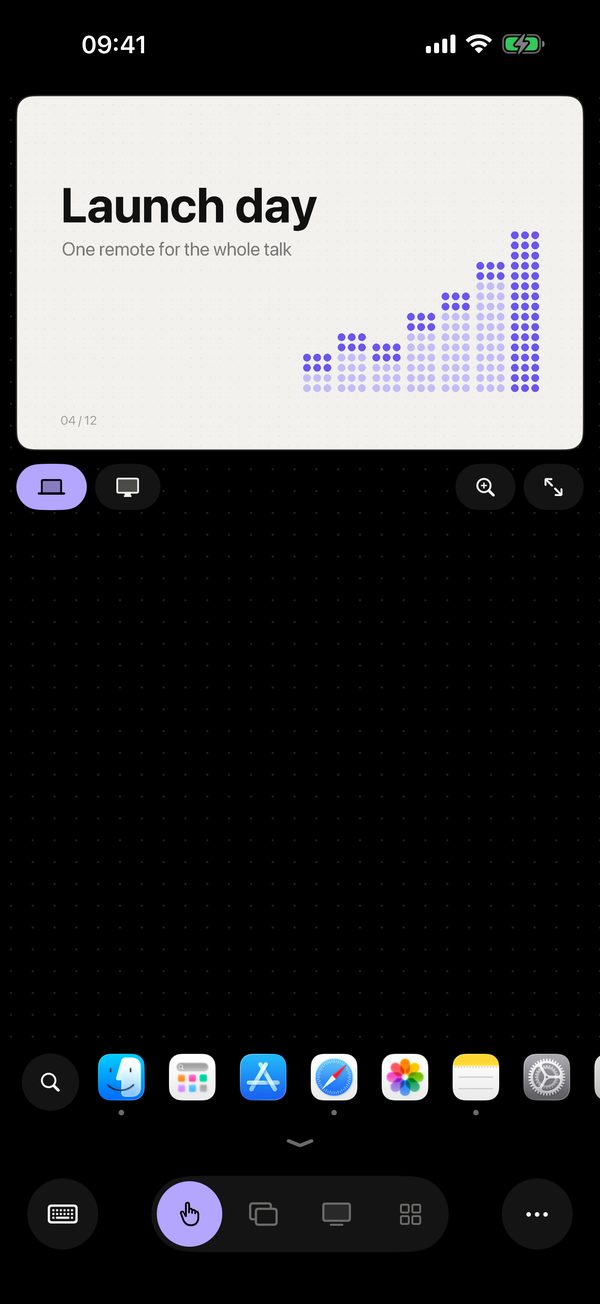
A short tour teaches the gestures right on the phone — the Mac doesn’t react meanwhile, so try freely.
Gestures
- One finger moves the cursor; tap to click, double tap to double-click.
- Two fingers scroll with momentum; a two-finger tap is a right click; spread to zoom.
- Hold a finger and drag a file or window.
- Pro: three- and four-finger gestures as set on your Mac, or 11 gestures of your own, a bar of 21 shortcuts, landscape on iPhone (free on iPad).
Keyboard and Dock
Type in any language or dictate — the text appears in the active field on the Mac. There are ⌘⌥⌃⇧, esc, tab, arrows and F1–F12. Above the trackpad sits your Mac’s Dock: pinned and open apps, and search finds even closed ones.
When it comes in handy
A MacBook hooked up to the TV while you are on the sofa; a Mac mini or Mac Studio with no trackpad; a broken trackpad or a flat Magic Mouse; controlling the Mac without getting up from the kitchen table.
Honest limits
- At home no internet is needed, but the phone and the Mac must see each other: one Wi‑Fi network, or Wi‑Fi and Bluetooth on both. Hotel guest networks sometimes isolate devices — then the iPhone’s Personal Hotspot helps.
- The first setup on the Mac needs a mouse or keyboard — once, to allow Accessibility.
- Three- and four-finger gestures and control from any network are part of Remolo Pro.
Questions
Is it free?
Yes: the trackpad, keyboard, Dock and several Macs are free forever, with no ads. Pro adds 3–4-finger gestures, the Mac’s screen on the phone, control from any network and more.
Does it work with an iPad?
Yes — the trackpad is bigger there, and landscape is free.
Do I need an account?
No. The phone and the Mac pair with a code from the Mac’s screen, and the connection is end-to-end encrypted.
More guides
- How to control a Mac mini from your iPhone, at home and remotely
- How to check from your phone whether Claude Code has finished
- How to advance Keynote and PowerPoint slides from your iPhone
- How to get a file from your Mac when you are not at home
- How to turn your iPhone into a Stream Deck-style button panel for your Mac
- How to control a Mac from your iPad
- How to control films and music on your Mac from the sofa
- How to advance slides from your Apple Watch
- How to lock or sleep your Mac from your iPhone
- How to type and dictate text on your Mac from your iPhone
- How to give someone temporary access to your Mac